 Deutsch
 English
 Español
 Français
 Nederlands
If you use a channel manager, and you have the option "Upload restrictions" enabled, you can manage your restriction directly in Mews.
In this article you can learn about:
- How to verify if a modified restriction has been updated in the channel manager.
- How to push restrictions manually
How to verify if a modified restriction has been updated in the channel manager
Once the restriction is updated in Mews:
- Wait for ten minutes.
- Go to the Main menu > Queues > Channel manager.
- In the filter options, select:
- Type: Generated inventory push.
- Start Date: Select the date and time you made the modification.
- End Date: Select the current date and time.
- Click Ok.
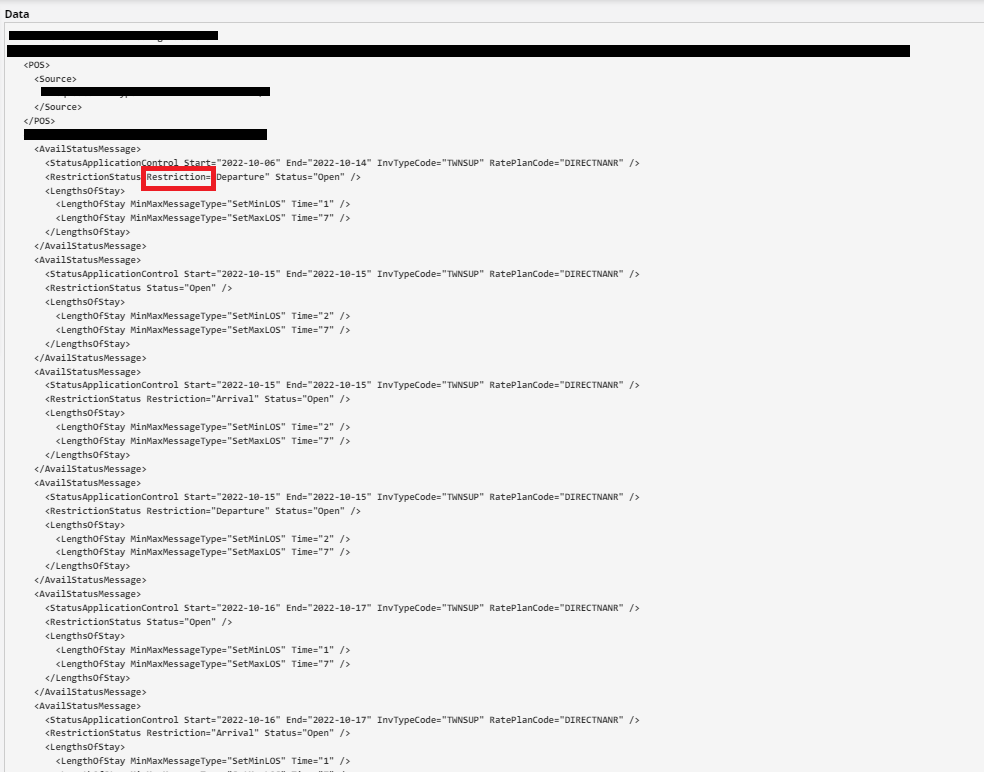
- Under Type, click the Generated inventory push link to display the code sent to the channel manager, updating them on your restrictions.
- Locate the word "Restriction" to verify the push update.
How to push restrictions manually
If there is no Generated inventory push link, you need to push the restrictions manually.
To do so, follow the steps below:
- Go to the main menu > Marketplace.
- Click on My subscriptions.
- In the list, find your Channel Manager, and click Edit.
- In the channel manager settings, scroll down to the Enabled Operations section and verify that Upload restrictions is activated.
- Click on Manual Actions.
- In the Push Inventory part:
- Under From, enter today's date.
- Under To, leave blank.
- Click Send.