 Deutsch
 English
 Español
 Français
 Nederlands
An override in Atomize RMS by Mews replaces the price, or the price boundaries, that Atomize RMS by Mews recommends for one or more stay dates. RMS stands for revenue management system, a tool that recommends room prices based on demand and sends them to your property management system, or PMS, such as Mews Operations. You use an override when you want to set a fixed price for a date, or when you want to temporarily change the minimum and maximum prices that the recommendations can move between, for example for an event or a holiday. Overrides are for revenue managers and other users who manage pricing in Atomize RMS by Mews. You make overrides on the Calendar, Most urgent, and All stay dates pages. A price override overrules a hierarchy override on the same stay date, and a price override stays in place until you remove it. Overrides give you direct control of your prices for specific dates while Atomize RMS by Mews continues to optimize all other dates.
In this article you can learn about:
Video: How to do price overrides in Atomize RMS by Mews. The video shows the same steps that this article describes.
Making overrides
Regardless of if you are using Autopilot or not, you can override the current prices on one or several days. Autopilot is the setting in Atomize RMS by Mews that pushes the recommended prices to your PMS automatically. You have two options to do so, either by overriding the price hierarchy by configuring new boundaries that the prices can move within or by overriding a current price and setting a fixed price point. The price hierarchy is the set of minimum and maximum prices, and the offsets between room types, that Atomize RMS by Mews keeps its recommendations within.
You can override several room types at once but you do not need to - you can choose to do only a fixed override or a price boundary change on one individual room type. You also have the possibility to either make overrides for one stay date or for multiple dates, see the section Multiple overrides for several dates at the same time.
You can make overrides on the following pages in the system:
-
Calendar
-
Most urgent
-
All stay dates
Icons
Throughout the system, you can see orange icons that indicate when overrides are in place for a date. The following icons are shown:
It is possible to input both a price override and a hierarchy override on the same stay date. It is important to know that the price override overrules the hierarchy override, meaning that the price override is pushed to your PMS. You can learn more about the hierarchy order of pricing controls in the help article Hierarchy order of pricing controls.
Price override
The price override allows you to override the current price. It is fixed, meaning that it stays frozen until you actively remove it by choosing to accept a recommendation.
To make a price override on one stay date:
-
In Atomize RMS by Mews, go to the Calendar, Most urgent, or All stay dates page and navigate to the desired date.
-
Click the Override prices button. A pop-up window opens where you can set price overrides.
-
Enter the new price for each room type you want to override.
-
Click the Save changes button. The price is directly pushed to your PMS.
Edit or remove a price override
To edit a price override:
-
In Atomize RMS by Mews, navigate to the stay date with the price override.
-
Click the Override prices button. The override pop-up window appears.
-
Make your changes.
-
Click the Save button.
To remove a price override for one room type:
-
In Atomize RMS by Mews, navigate to the stay date with the price override and click the Override prices button.
-
Click the Remove (trash can) icon to the right of the room type. The override for that room type is removed.
To remove all overrides for a stay date:
-
In Atomize RMS by Mews, navigate to the stay date with the price overrides and click the Override prices button.
-
Click the Remove all & accept button.
Note: By removing an override, the price recommendation is accepted and the price is pushed to the PMS.
Important
- Fixed overrides are allowed to break the current price hierarchy, however, Atomize RMS by Mews never recommends prices outside your configured boundaries in the price hierarchy.
Hierarchy override
Use a hierarchy override when you temporarily want to override your current price hierarchy. It is especially useful when you want to narrow the boundaries between the minimum and maximum prices for room types just for a specific date.
To make a hierarchy override on one stay date:
-
In Atomize RMS by Mews, go to the Calendar, Most urgent, or All stay dates page and navigate to the desired date.
-
Click the Override hierarchy button. A pop-up window opens where you can set new minimum and maximum boundaries as well as the offset between the room types.
-
Enter the new minimum and maximum prices and the offsets.
-
Click the Save button. Your new hierarchy is applied for that day.
Note: If you decide to change the price boundaries and a current price is outside the new boundaries that you define, Atomize RMS by Mews pushes a new price that is within the new limits.
For example: if the current price for a room type is EUR 50 and the new minimum is set to EUR 60, Atomize RMS by Mews sets the current price to EUR 60. If the current price is within the new limits, Atomize RMS by Mews does not change the price but ensures that all new recommendations produced are within the limits.
Important
- If the existing price recommendations from Atomize RMS by Mews are outside the new boundaries, the recommendations are temporarily removed, and the price shows N/A, which means not available. New recommendations that adhere to the new limits are produced in the next optimization round.
Edit or remove a hierarchy override
To edit a hierarchy override:
-
In Atomize RMS by Mews, navigate to the stay date with the hierarchy override.
-
Click the Override hierarchy button. The override pop-up window appears.
-
Make your changes.
-
Click the Save button.
To delete a hierarchy override:
-
In Atomize RMS by Mews, navigate to the stay date with the hierarchy override and click the Override hierarchy button.
-
Click the Remove boundaries button at the bottom of the pop-up window.
By removing the hierarchy override the seasonal hierarchy, if you have one configured, or the default price hierarchy applies.
Multiple overrides for several dates at the same time
Regardless if you want to do price overrides or hierarchy overrides you can select several dates and update them at once. Just as for daily overrides, you can adjust one room type or several. You can make multiple overrides both from the All stay dates page and from the Calendar page.
To make multiple overrides on the All stay dates page:
-
In Atomize RMS by Mews, go to the All stay dates page.
-
Optionally, check the boxes next to the stay dates you want to override in the list.
-
Above the list to the right, click the Override prices or Override hierarchy button. A pop-up window is displayed with all selected dates.
To make multiple overrides on the Calendar page:
-
In Atomize RMS by Mews, go to the Calendar page.
-
Above the calendar to the left, click the Override prices or Override hierarchy button. A pop-up window is displayed.
Price override for multiple days
To make a price override for multiple days:
-
In Atomize RMS by Mews, open the price override pop-up window from the All stay dates or Calendar page.
-
Select the stay dates to which you want the overrides to apply by using the date pickers.
-
Click the Add button after selecting your dates.
-
In the section Set price, select whether to set the same price on all your selected dates or different prices for each day you selected.
-
Enter the prices.
-
Click the Save price changes button. The prices are directly pushed to your PMS.
Note: that the price overrides are allowed to break the price hierarchy.
Hierarchy override for multiple days
To make a hierarchy override for multiple days:
-
In Atomize RMS by Mews, open the hierarchy override pop-up window from the All stay dates or Calendar page.
-
Select the stay dates to which you want the overrides to apply by using the date pickers.
-
Click the Add button after selecting your dates.
-
In the section Set price, select whether to set the same boundaries on all your selected dates or different boundaries for each day you selected.
-
Enter the minimum and maximum prices.
-
Click the Save button.
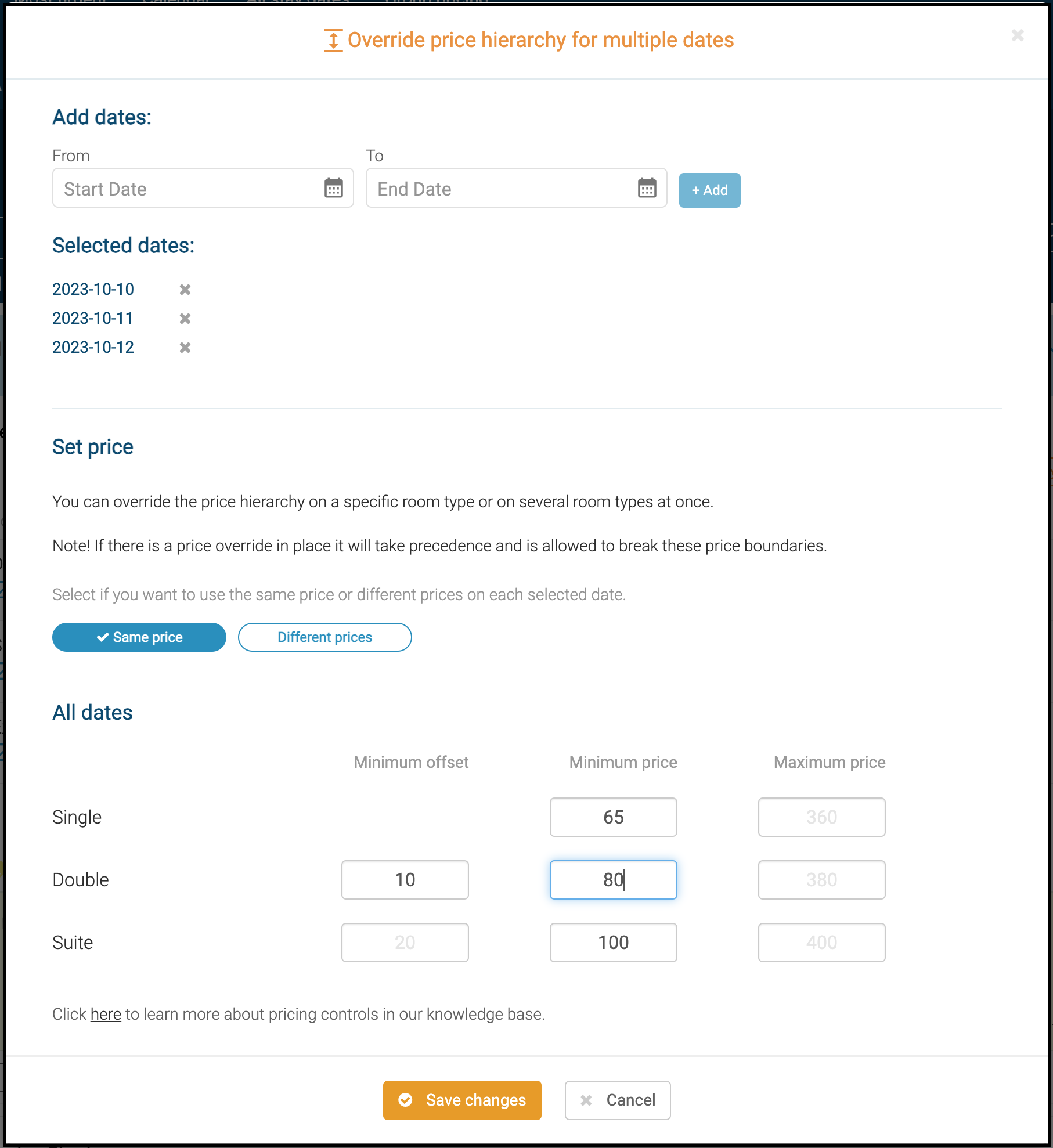
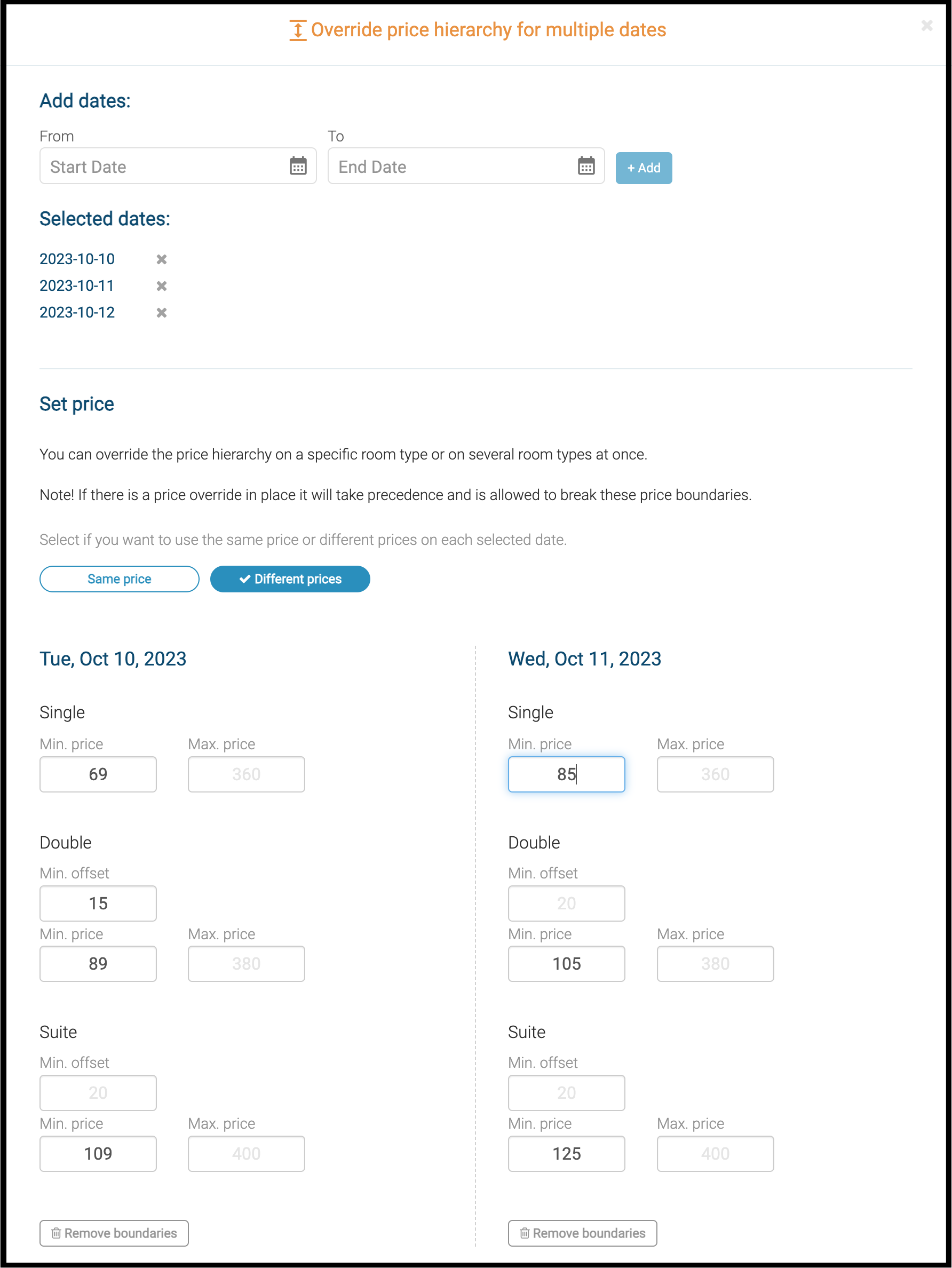
When Same price is selected and you have an existing hierarchy override on a date, that date is overwritten by the new price boundaries you set. However, you can also choose to have different boundaries for different dates. You can also remove an existing override on a day by clicking on the Remove boundaries button on that day.
If you are going to make a hierarchy override on a large number of consecutive dates, consider making a seasonal price hierarchy instead. You can learn more about seasonal price hierarchies in the help article How do I change my price hierarchy.
Important
- If a fixed price override is configured for any room type, it remains until it is actively removed even if you set a new hierarchy override.
Add a note after a bulk override
When you do a price or hierarchy override in bulk, a pop-up window with the possibility of adding a note on those override dates appears. Adding a note helps you and your team remember and understand the reasoning behind the override.
Removal of multiple overrides
It is possible to remove several overrides at once. To remove multiple overrides:
-
In Atomize RMS by Mews, go to the All stay dates page.
-
Check the boxes next to the stay dates you want to remove overrides from.
-
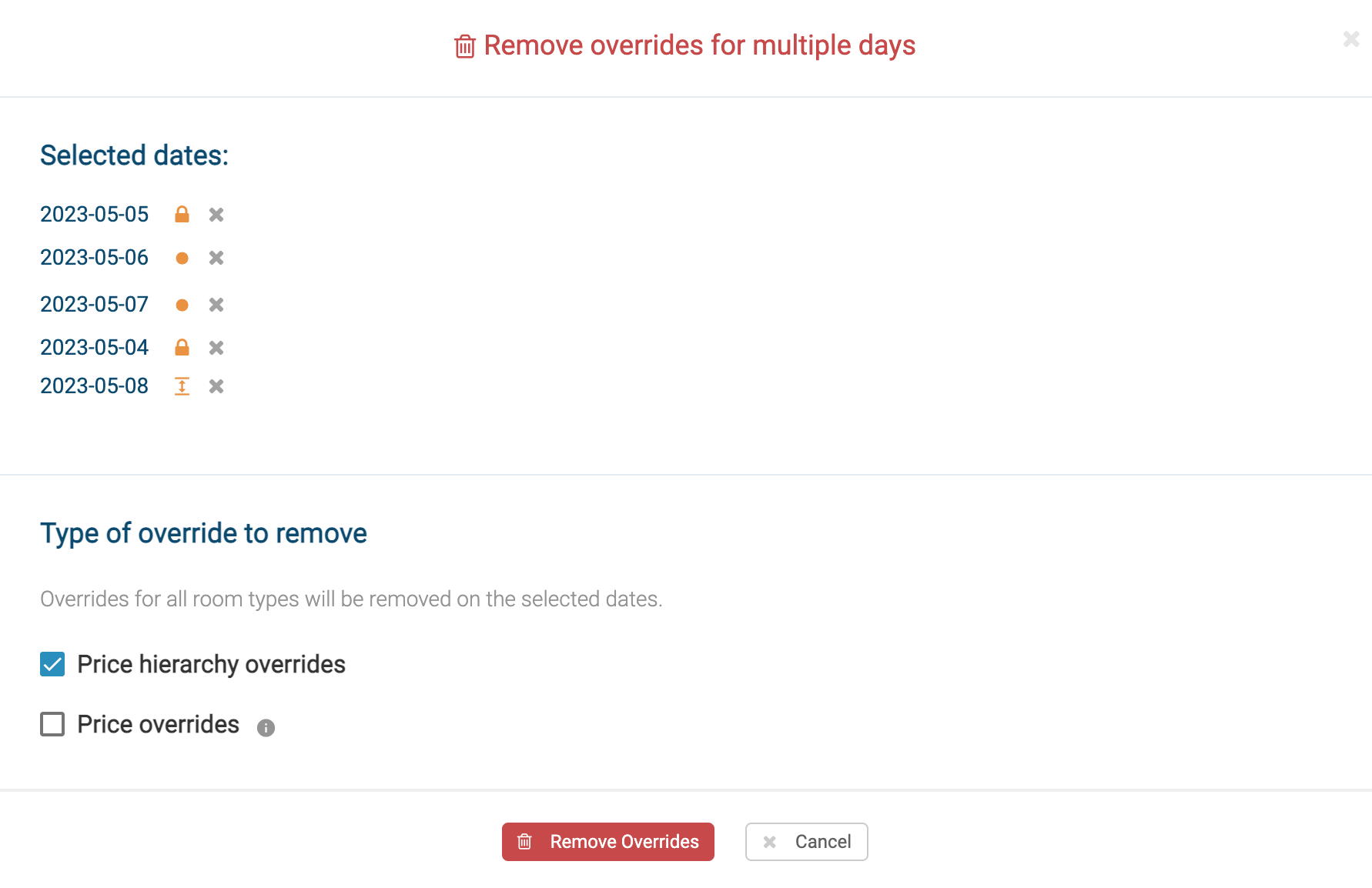
Above the list to the right, click the Remove overrides button. A pop-up window is displayed with the option to select what type of override you want to remove.
-
Select the type of override.
-
Click the Remove overrides button to confirm. Your overrides are removed.
You can learn more about how overrides interact with other pricing controls in Atomize RMS by Mews in the help article Hierarchy order of pricing controls.