 Deutsch
 English
 Español
 Français
 Nederlands
My Learning in Mews University is your personalized training roadmap—showing what’s required, recommended, and in progress—all in one place. As you complete courses, they’re automatically removed from the main list but stay available in your learning history and, when relevant, under Skills or Credentials. Whether you’re onboarding or building new skills, this helps you stay organized and focused on what’s next.
In this article you can learn about:
Accessing My Learning
To access My Learning:
- Go to Mews University.
- Click on the My Learning tab on the top of the screen.
Alternatively, you can:
- Go to Mews University.
- Click on your profile image.
- Select My Learning from the dropdown menu.
Up Next tab
When exploring My learning, Up Next is the first tab that automatically opens. It lists activities assigned by Mews or your manager, along with any self-enrolled activities, which also appear on your homepage. You can use Up Next to prioritize and track your progress.
Note:
- Mews University marks required activities with an exclamation mark symbol and due by date. Recommended activities are optional learning.
- Each Required Activity has a due date which you cannot modify. Only your manager can adjust these due dates. Read more about due dates in Due dates in Mews University.
- The system automatically organizes learning with Overdue and next-due required courses (up to 7 days) appearing first, then Required or due-date courses beyond 7 days, and elected or optional courses appearing last.
Adding learning activities to Up Next
To add a learning activity to Up Next:
- Locate the desired activity (learning path, or course).
- Launch the activity.
This activity now appears in Up Next.
Dropping learning activities from Up Next
Note: You can only remove self-enrolled and recommended activities.
To remove yourself from a learning activity:
- In the My Learning tab, find the activity you wish to remove by scrolling down the list, or by searching by title and/or using the available filters.
- Click
on the upper-right corner of the activity card.
- Select Drop Enrollment.
Favorites tab
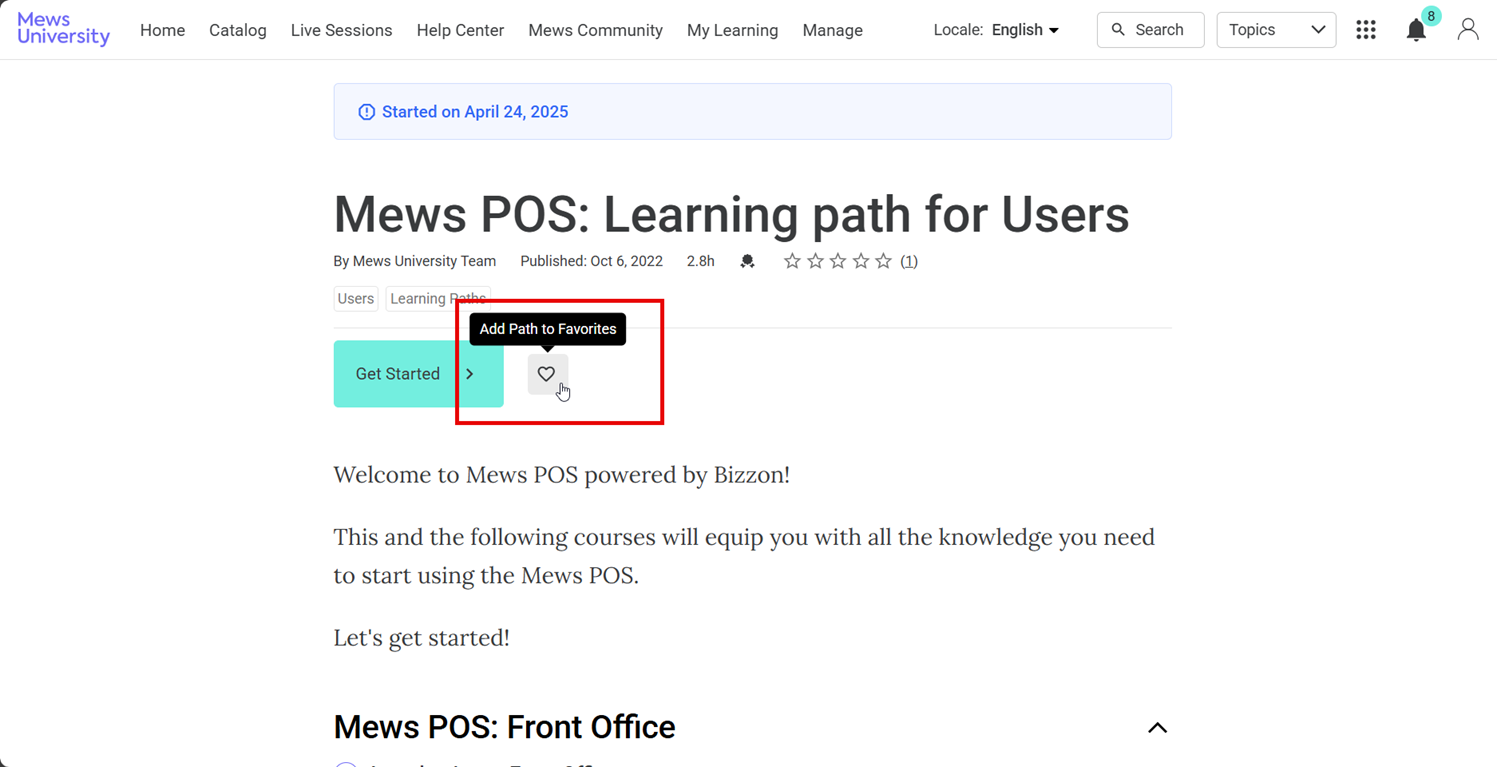
The Favorites tab shows all your favorited learning activities.
Favorite a learning activity by clicking the heart icon underneath the activity name.
History tab
Open the History tab by selecting it from the sidebar.
From the History tab you can:
- Search, review and print a list of the learning content you've viewed, started, completed, dropped or failed. Note: You can also use these criteria to filter the content in the History tab.
- Use the Filter to limit your result list by enrollment status to help you find the learning content you're looking for.
For example, you can filter by Passed and this allows you to see all your completed Courses, Learning Paths and Activities in one place.
Credentials tab
The Credentials tab stores all the badges and certificates you have gained by completing learning paths in Mews University.
FAQs
Why can’t I remove an activity?
You cannot remove required activities assigned by Mews or your manager.. Discuss adjustments with your manager if needed.
Can my manager see which courses I am doing?
Yes, your manager has full visibility of your enrollments and completions in Mews University and can make edits as necessary.
Who is my manager in Mews University?
Your manager is the person marked as your Supervisor in Mews Operations.
What are the Personalized Learning / Skills / Challenges tabs?
These are features which are not yet available in our Mews University. We will inform you as soon as the situation changes.
You can learn more about activity enrollment in our help article How to enroll in Mews University learning paths and courses?