 Deutsch
 English
 Español
 Français
 Nederlands
You can change or update information and details in your Mews user account. This is useful, for example, updating your phone number, user photo, or changing the system language.
The system creates each Mews user’s account using the email address you provide, and automatically assigns a username. You can add more personal information, adjust your preferences, and manage security measures that control access to your account, including two-factor authentication and passkeys.
To modify either the email address or username, you currently need to remove the existing user and create a new one. You can learn about this in the Add or remove a user in Mews Operations help article.
In this article, you can learn the following:
To change your user account information:
-
In Mews Operations, click on the user account icon in the bottom left corner.
-
This opens the following screen, which contains several options for you to update your user information:
- Click the Personal info tab. This contains your personal user information and user photo.
- To add or change your user photo, click Upload photo. This opens the following:
- Click or drag your new photo into the grey field to upload it, then click Upload.
Note:
- Mews recommends you select a high-resolution, square image for best results.
- Maximum upload photo size 5MB.
- This image is visible to guests and other users. Mews reserves the right to use the image at discretion, for example, displaying it to guests when messaging) and to delete inappropriate pictures.
You can update and add further personal information in the fields below. Fields marked with an asterisk * are mandatory:
Personal info
- Title: Enter the title preceding your name, for example, Ms.
- First Name*: Enter your first name. Note: Only your first name is visible to customers in Guest Messages.
- Last name*: Enter your last name.
- Second last name: Enter an additional last name.
- User ID*: A unique username alias that you can use instead of your email to log into Mews. Note: You cannot change this.
- Date of birth: Click the calendar icon to select your date of birth.
- Place of birth: Enter your place of birth.
- Nationality: Click the drop-down to select your nationality.
- Sex: Click the drop-down to select your sex. Note: This field only accepts the same value as in your passport.
Contact info
- Email address*: The email address for your Mews user account. Note: You cannot change this.
- Phone number: Add your preferred contact phone number.
-
Click Save.
This updates your personal information in your Mews user account.
-
Click the Preferences tab to open the following. You can modify the following fields:
Language and region settings
- Language: Click the drop-down to select the system language.
- Date and price format: Select the format for date and pricing.
Preferences
-
Property by default: Select the property account you want to log into automatically.
-
Click Save.
This updates your user account preferences.
-
Click the Privacy and security tab. Here you can add or adjust your login security measures and preferences:
Login
- Passkeys: Passkeys provide a password-free way to sign in to your Mews account. They reduce reliance on passwords and help protect your account from phishing attacks. Mews recommends setting up passkeys as a security best practice to strengthen your login protection. Click Create passkey to register your device and create a passkey. You can learn more in the help article How to create passkeys for your Mews account.
Note: You need access to a supported device and browser to create and use a passkey.
- Authentication: Two-factor authentication (2FA) is enabled as mandatory across Mews accounts. It requires two methods of authentication to secure your account: both a password and clicking a secure link via email, or an authentication code you enter into your authenticator app to sign into your Mews account. You can learn about two factor authentication here. Click Switch to email link to update your authentication method to a secure link via email.
Note: Mews recommends using strong authentication methods and following all security best practices, including setting up passkeys, to protect your account. You can learn more in the help article Securing your Mews Operations user accounts.
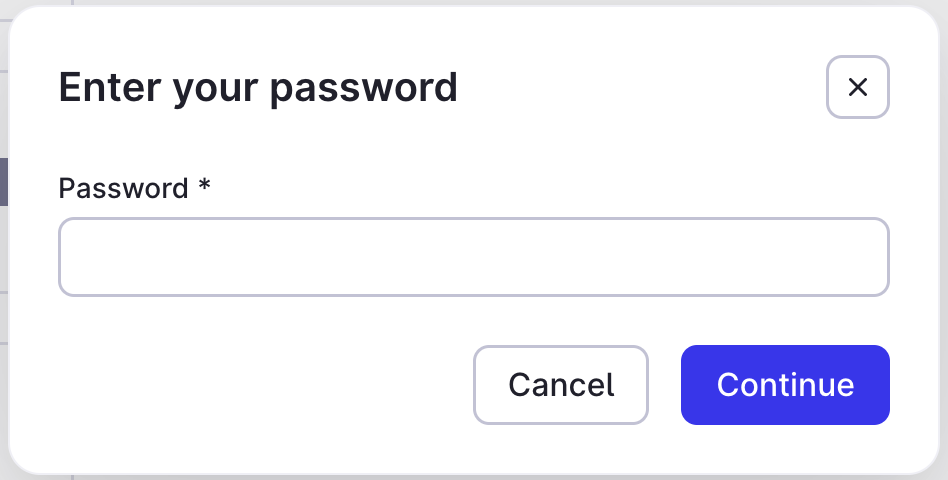
- PIN: Click the slider switch to turn on and create a PIN to access your user account, instead of a password. Note: You need to enter your password before adding a PIN for extra security. You can learn more about setting up pin access to your Mews account here.
-
Password: Click to change your password. In the pop-up window that appears. You need to enter your current password before creating a new version. Note: Your Mews user account password needs to consist of 12 characters and include symbols or special characters. You can learn more about how to change or reset your password.
 Cookies and data
-
Cookie preferences: Click to view or modify your privacy settings. This opens the following pop-up window, where you can adjust your settings and preferences accordingly.
This updates your user account information and security settings in Mews, including authentication methods such as passkeys and two-factor authentication.
Help article