 Deutsch
 English
 Español
 Français
 Nederlands
Individuals who oversee accounts or finance can use the Mews Payments balance report to check the property's financial performance. You can use this report when closing your books, usually at the end of month for reconciling payouts with the balances in your bank account/s, or even for a quick check of daily payouts.
The Mews Payments balance report gives you an overview of your finances, commissions, platform fees, top-ups, commission adjustments in one place. The Mews Payments balance exported report too is a data rich document that eases your reconciliation process in comparison with before where you had to compare two different reports. With Mews Payments, you have everything at your fingertips in the system itself.
To view the Mews Payments balance report:
- In Mews Operations, go to the main menu
> Finance > Mews Payments balance.
In this article you can learn about the following with respect to the Mews Payments balance report:
- Setting the report filters
- Understanding the fields in the report
- Using the filters to reconcile Mews Payments
Setting the report filters
In the Mews Payments balance page, you can refine which transactions you view in the report, by setting the following filters:
- Mode: Choose either of the following filters,
- Created: When you choose this mode, you can see all payments created within the time period you specify in the Start and End filters.
- Settled: Choose to filter only Settled payments.
- Start: Select a start date and time to restrict results to a specific time period.
- End: Select an end date and time to restrict results to a specific time period.
- Integration: Restrict results to transactions made through a specific payment gateway integration.
- Currency: Select a currency to only view transactions made in that currency.
- State: Filter by status Settled/ Unsettled.
- Type: Select the types of Mews Payments transactions you want to see.
- Balance top up: Money that the property admin transfers to your Mews Payments account.
- Charge: A card payment made by a customer to your Mews Payments account.
- Commission adjustment: Mews charges a commission based on an estimate from the previous month, then adjusts it to match your actual payments. Select this to view those adjustments. You can learn more about commission adjustments here.
- Mews Payments commission: The amount of Mews Payments commission you pay for a charge, which is always paired with a charge.
- Payout: Money that Mews transfers from your Mews Payments account to your bank account, represented as a negative value on the balance sheet.
- Platform fee: Money withdrawn from your Mews Payments account for your monthly Mews payment.
- Rolling balance adjustment: The difference between what settled in your Mews Payments account during this period and what was transferred to your bank. Funds held to a later payout, or released from an earlier one, appear here so the payout adds up.
Understanding the fields in the report
The report lists each Mews Payments transaction, with the following information:
- Type: The type of transaction, i.e. Charge, Mews Payments commission, Payout, Platform fee, Commission adjustment, or Rolling balance adjustment. You can click on any payout to see the platform fees, charges, and Mews Payments commissions that make it up.
Note: The Mews Payments balance report logs Mastercard failed payment fees as Commission adjustment.
- Identifier: Information to help you identify the transaction. This is different for each transaction type:
- Charge: Card payment or refund, the card type, the last 4 digits of the card number, and a note describing the transaction.
- Mews Payments commission: The Mews Payments commission identifier always matches the identifier of the charge that the commission is attached to.
- Payout: The settlement ID assigned to payment by your payment gateway.
- Platform fees: The subscription number, description, interval, and invoice number of your platform fee.
- Commission adjustment: The difference between the estimated and the real commission, i.e., the adjusted fee.
- Created (UTC): The time and date that the transaction was created.
- Settled: Payment status.
- Amount: The transaction amount, including currency.
- Settlement Id: Payment gateway ID for transaction reference.
- Customer: Customer name.
- Card Type: The card type used to pay. You can differentiate between different payment card fees, such as Visa, Mastercard.
- Card: Card number used to complete transaction, for example, 411111******1111
- Integration: The specific merchant integration.
- Accounting Category: Name of the corresponding accounting category. Easier for reconciliation if using an external accounting software.
- Payment Creator: Convenient for distinguishing manual from system updates
- Bill Number: The bill number, which you can use to cross-reference bills and reservations.
Note:
- If you are using Mews Payments powered by Adyen, the payment amounts are shown in the Mews Payments balance report and the transaction breakdown will display a day after the payouts.
- If you are using Mews Payments powered by Stripe, the transaction detail is visible immediately.
Balance overview
The Chargeback reserve is that component of your balance which Mews holds aside to ensure that you can promptly and successfully pay off future chargebacks, regardless of any potential disruption you may face, for example, an event that results in an increased volume of chargebacks.
Not every country has the Chargeback reserve, so do not worry if you cannot view it in your report. Note: As Mews rolls out chargeback reserve, you may see some payments unsettled due to this as well.
Mews:
- calculates the reserve amount on individual property basis, so different properties in the same chain can have different reserve amounts.
- looks at your chargeback ratio, i.e. the percentage of payments that were charged back for your recent transactions and adjusts it to reflect global financial risk levels. Mews recalculates and adjusts this every seven days.
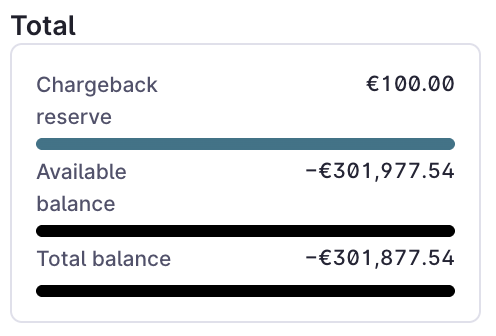
In the above image,
- Chargeback Reserve is the amount of money held in reserve in case of upcoming chargebacks.
- Available Balance shows the balance that is available on your payment gateway account, and/or is expected to arrive in your bank account. This depends on your bank's payment schedules and excludes your chargeback reserve.
- Total Balance shows the total balance of your payment gateway accounts, including your chargeback reserve.
Note: If you don't have the breakdown as shown in the screenshot above, then there is no reserve being held.
Using the filters to reconcile Mews Payments
You can choose the filters in the Mews Payments balance report as follows to reconcile Mews Payments:- If you choose the Mode: Created and State: Settled, and click View report, you can view all paid payments for the selected time filter, whereas,
- When you choose the Mode: Created, and State: Unsettled, and view the report, you see the `Settled` column empty, as those transactions are to be paid out in future, according to your payout schedule, and
- As an accountant if you want to create a pivot table, choose Mode: Created, State: Settled, along with the rest of the filters and export the report, you can create one as per your requirement. See an example below:
You can learn more about the different Mews Payments fees here.