 Deutsch
 English
 Español
 Français
 Nederlands
The online check-in journey in the Guest Portal begins when a guest first clicks on the link in their SMS message or Confirmation, Online check-in or Online check-in reminder email to start their check in and ends on their successful pre-registration. Online check-in is the process a guest can take before arriving to the property whereby guests provide the data your property has configured which allows the front desk to check the guest in with the press of a button.By checking in online, guests avoid long queues on arrival, which reduces manual work for staff and saves time for both guests and employees ensuring a stress-free experience. Mews automatically saves registration cards that the guests complete during online check-in to relevant customer profiles in Mews Operations.
Understanding this process can give you a better overview of the guest’s experience and see the steps they take for a successful check in.
In this article you can learn about the following steps of the online check-in journey in the Guest Portal:
- Step 1: Welcome screen
- Step 2: Collect OTA booking emails
- Step 3: Scan identity document
- Step 4: Check in form
- Step 5: Collect companion details
- Step 6: Upgrade space
- Step 7: Add products
- Step 8: Payment screen
- Step 9: Verify OTA booking emails
- Step 10: Successful check in screen
- Step 11: Homepage
The online check-in journey in the Guest Portal consists of the following steps:
Step 1: Welcome screen
When a guest opens the link to the Guest Portal, Mews displays the Welcome screen, where they:
- Click on Get Started to enter the portal. Note: By clicking Get Started, guests consent to creating a guest portal account which Mews manages. Guests can edit their data permissions or delete their account at any time, you can learn more here.
Step 2: Collect OTA booking emails
Guests booking through online travel agencies need to verify their email address before completing the check in form. You can learn more here.
Step 3: Scan identity document
If your property sets up verification, Mews asks the guest to scan their passport, ID card or driver’s license. The guest can then:
- Check the “I agree to the processing of my ID image” box.
- Click Continue to scan their document or click Skip. Note: Guests can only skip if your property has set this field to Optional.
- Click Allow to allow Mews to access their device’s camera.
- Click Start scanning and scan the front and back of their document.
If the scan is successful, the guest can move to Step 4, where the guest portal pre-fills their details. If the scan is unsuccessful, the guest can click Try again to scan again.
Step 4: Check in form
Once in the portal, guests need to fill in their check in form. Mews then uses this information to complete their customer profiles and registration cards. The form is set to Mews’s default configurations for your location. You can customize the fields in this form based on your preferences, so they are mandatory, optional or hidden in online check-in and the guest portal generated registration cards. Note: The guest can exit their online check-in and come back at any time. The system automatically saves their data.
- To start the online check-in, guests need to fill in the following details:
- Verification photo:
- Check the 'I agree to the processing of my verification photo' box.
- Click Continue to take a photo or click Skip. Note: Guests can only click Skip if your property has this field set to Optional.
- Personal details: Fill in all mandatory fields marked with an asterisk and click Continue.
- Home address: Fill in all mandatory fields marked with an asterisk and click Continue.
- Identity document: Fill in all mandatory fields marked with an asterisk and click Continue.
- Verification photo:
- Check the ‘I agree to Property T&C’ box. Note: You can learn more about how to set up your guest-facing documents here.
- Check the ‘I agree to Property house rules’ box. Note: The system only displays your house rules if you have set them up. You can learn more about how to set up your guest-facing documents here.
- Check the box to receive marketing updates. Note: Guests need to manually check the box for this option if they want to receive marketing updates.
- Sign the check in form and click Continue.
Step 5: Collect companion details
Depending on how you configure the Check in form, the guest portal can request companion details. If you require companion details, the guest can then:
- Click Add adult or Add child. Note: You can configure which fields appear for different types of companions here.
- Click:
- Enter details to fill the details on behalf of their companions. Note: If you configure it, the system asks Reservation owners to define their relation to the other guests in their reservation here.
- Invite guest to invite them by email to complete their own online check-in.
- Click Save to save their companion’s details. Note: When the reservation owner invites a companion to complete their own check in, the system does not ask them to define their relation to the reservation owner to avoid conflicting information.
- Click Add adult or Add child to add another guest or click Continue to save.
Step 6: Upgrade space
Guests can upgrade their space by selecting a higher category space in this section. When a guest upgrades their space, Mews updates their bill to include the new price. The original price is no longer visible on the guest’s bill. You can learn more about how to offer space upgrades to guests during online check-in here.
The guest can:
- Click to select an upgraded space.
- Click Continue.
Step 7: Add products
Guests can customize their stay by adding products during their check in. This screen is only available when you enable the ‘Before check-in' setting for your bookable services. Note: This screen only available for single-reservation online check-ins. If the guest is completing online check-in for multiple rooms, or a room and another service, the Guest Portal skips this screen. This is because products are set-up at the service-level.
The guest can:
- Click + Add to add their selected product, or
- Click Continue to continue without adding any products.
Step 8: Payment screen
The guest can then pay their remaining balance. When there are pending payment policies, the guest can pay up front by clicking Pay now or follow the automatic payment schedule by clicking Pay on schedule.
- Pay now:
- Click to select an existing payment card or add a new card by clicking + Add a card.
- Click Pay to finalize their payment.
- Pay on schedule: Click to confirm their card details or add a new card as a guarantee by clicking + Add a card.
Note: The Guest Portal may show the payment screen for scheduled pre-check-in payments, regardless of whether you deactivate payment card requirements. Guests can select Pay now to enter card details or Pay later to skip.
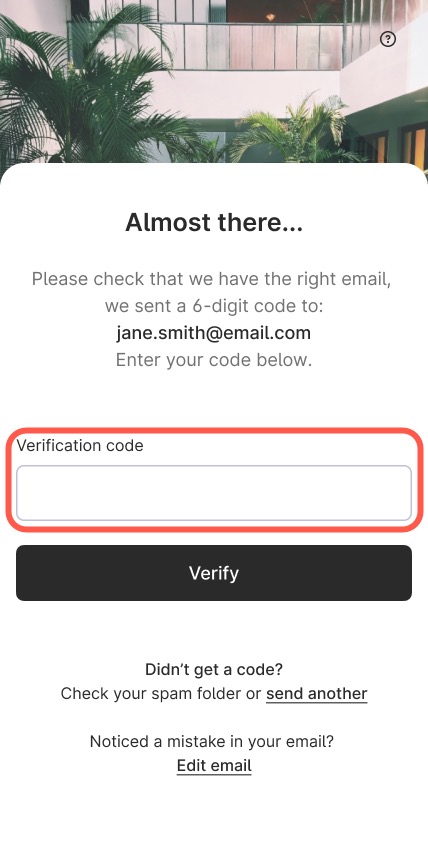
Step 9: Verify OTA booking emails
The system asks guests who booked through online travel agencies to verify their email address with a code.
Step 10: Successful check in screen
Once the guest completes their online check-in, they can view your instructions to check in and click Finish. If your property has enabled digital keys, the guest portal asks guests if they want to get their digital keys now or later. The guest can then:
- Click Get keys to start the digital key process, or
- Click No thanks to wait until a later date.
The guest has now successfully completed their online check-in.
Step 11: Homepage
After completing their online check-in, the guest portal brings guests to the homepage where they can view their reservation overview and see the check-in instructions.
From here, guests can view their upcoming stay, the details of their bookings and your property’s contact information. They can access the guest portal at any time by clicking the link in their Confirmation email.